Dictionary Editor Window
The Dictionary Editor is a simple application made of a starting screen and a main screen.
Welcome screen
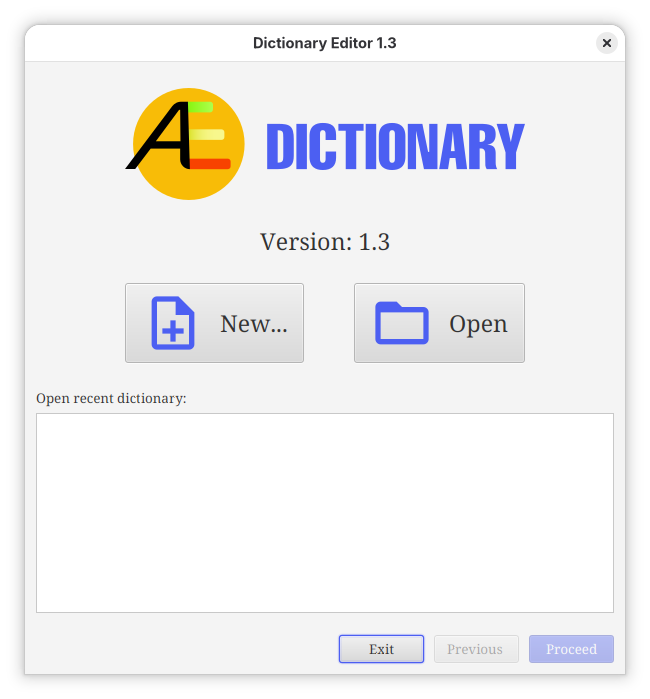
When starting the application, the first screen offers two main possibilities: create a new dictionary file or open an existing dictionary.
A list displays the dictionary files recently opened with the application, that can be opened directly.
|
Double-clicking on a recent file directly opens it. |
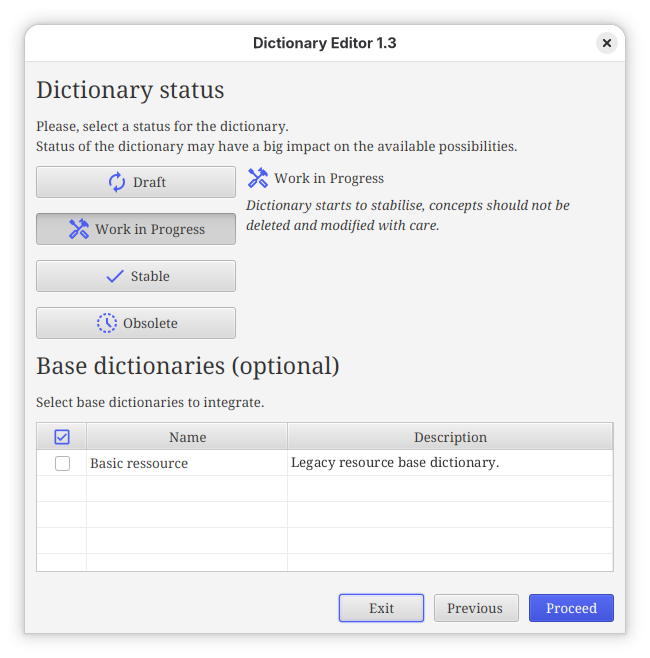
When selecting New …, a new screen appears as shown below.
On this screen, it is required to select a dictionary status for the new dictionary to create, see Dictionary status glossary.
It is also possible to select one or several base dictionaries. A base dictionary is a standardised dictionary that can be re-used for several other dictionaries.
Then to start, click on the Finish button.
When selecting the Open option or selecting a file from the list of recent files, the selected dictionary is directly opened into the application.
Main window
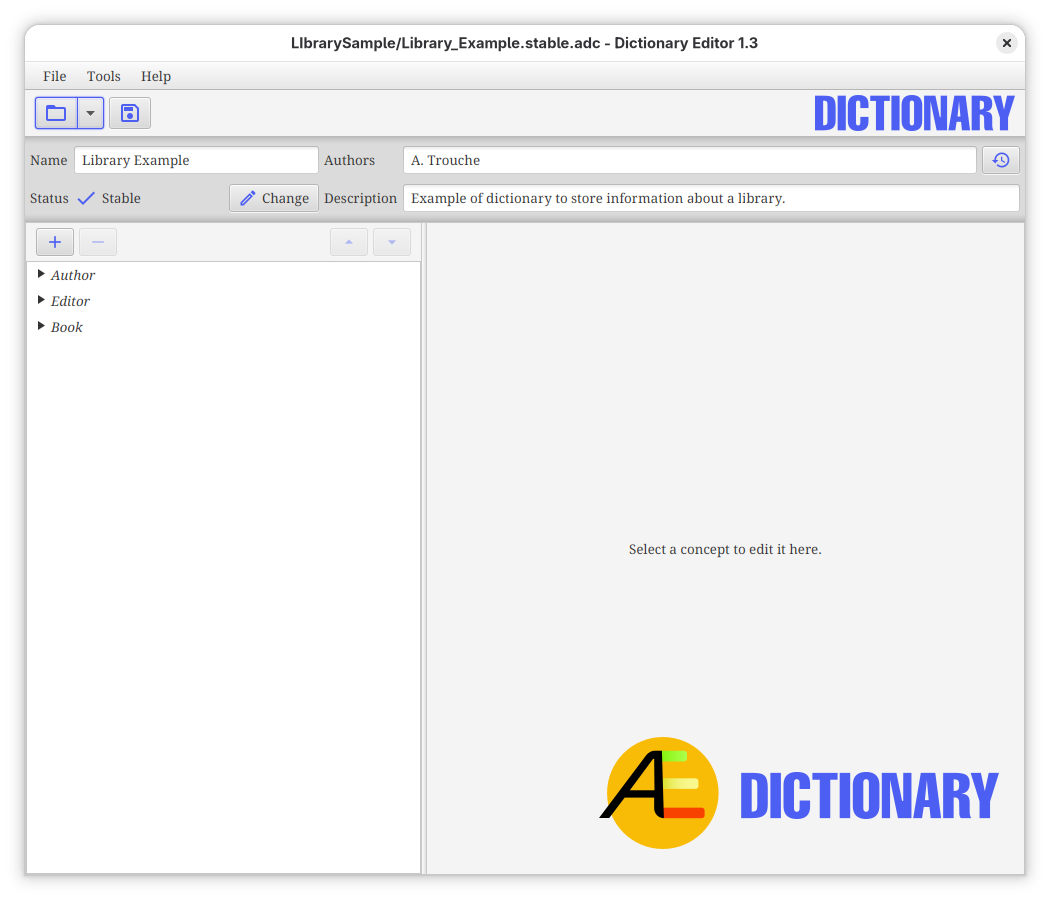
This is the main screen of the application. On the top, general application bars are present:
- Main Menu
-
It corresponds to main control menu of the application.
 Figure 4. Options of the main application menu bar
 - General Toolbar
-
It presents shortcut buttons to open and save a file.
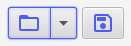 Figure 5. Buttons of the main toolbar
Main menu
File menu
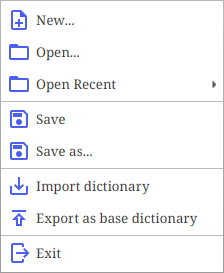
The File menu allows opening and saving dictionary files. An option also permits opening recent files. Inside the menu, at the bottom an option offers the possibility to clear the history of opened files.
It is also possible to import another dictionary inside the current one as well as export the current dictionary as a base dictionary, to be used for other dictionaries.
Imported dictionaries are imported as "new elements" that can be modified and deleted freely, compared to opened dictionaries that ensure history is kept.
Finally, the exit option enables leaving the application.
Please note that the application can only load one file at a time. When opening another file, if there are unsaved modifications, the application will propose to save this work before replacing it by the new opened file.
| Saving file is not trivial for dictionaries, see the Saving dictionary section. |
Tools menu
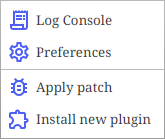
The Tools menu offers various tools and shortcuts. From here, you can access the preferences panel presented in the Preferences section. The console log is displaying various messages from the application such as errors and warnings.
With this menu, it is also possible to apply corrective patch to the application or install new feature plugin. To do so, click on the correct item and a file choose will appear and asks where the patch/plugin is located. Once installed, it is recommended to restart the application.