Preferences
The Preferences dialog allows the setting of the application options.
At the first launch of the application, the Preferences dialog box is shown and enables the user to change the default parameters right away.
| For each option, a btn:[Reset to default] button allows switching back to the initial value. |
General preferences
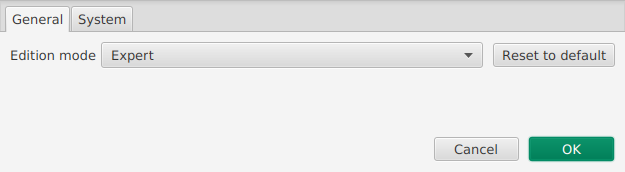
The first tab offers more general usability preferences, as shown above:
- Edition mode
-
This setting enables to select the mode of edition for the application. The default "Collective" mode ensures that the dictionary constraints are perfectly followed. On the contrary "Expert" enables to take some freedom with the organising of the data compared to the dictionary constraints on hierarchy.
System preferences
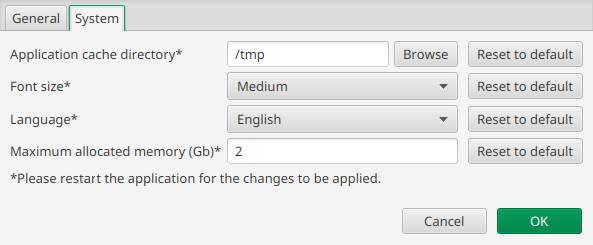
The last tab sets preferences for the system, as shown above. The user can choose:
- Font size
-
Enables to change the default police size for all the application.
- Language
-
Enables to change the language of the application. Currently, English and French are available.
- Application cache directory
-
By clicking on the “Browse” button, the user can choose the path where the application stores its temporary files.
It may be useful to change this setting if you do not have write access to your temporary folder (by default it uses the operating system default temporary folder).
The default setting is suitable for most users.
- Maximum allocated memory
-
The user can choose the value (in Gb) of the available memory for the application. It can be useful to increase this value when loading very big files, without exceeding the system maximum capabilities.
The default setting is suitable for all usages of the application.