ArchEditor Window
The ArchEditor is a simple application made of a starting screen and a main screen.
Welcome screen
When starting the application, the first screen offers two main possibilities: create a new Arch file or open an existing Arch file.
A list displays the Arch files recently opened with the application that can be opened directly.
|
Double-clicking on a recent file directly opens it. |
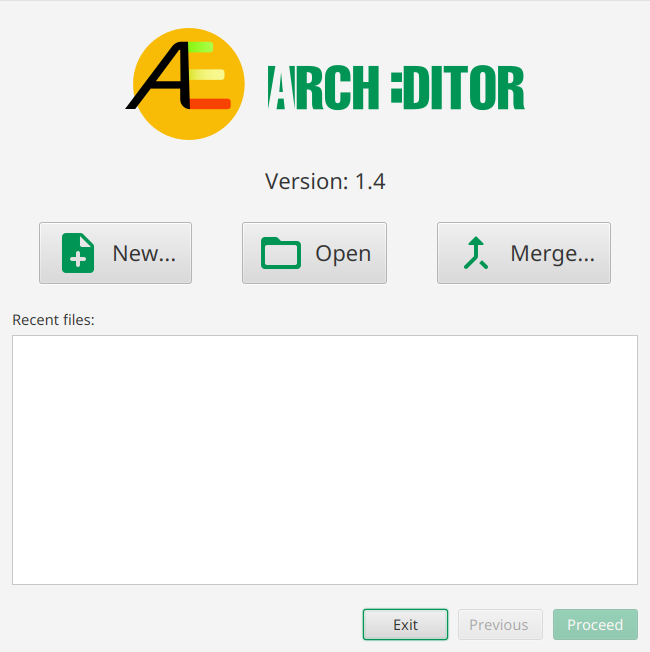
Several options are available at the startup of the application:
-
Creating a new file using an existing dictionary.
-
Opening an existing file, whether from the list of recent files or by clicking on the btn:[Open] button. The selected file is then directly opened for edition.
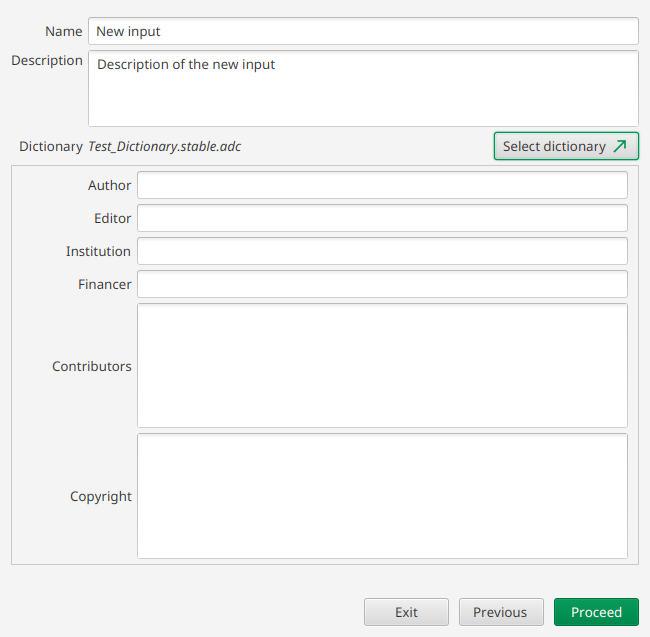
New file
When selecting btn:[New…], a new screen appears as shown below. On this screen it is necessary to provide a name and description for the new input to create. Then it is necessary to btn:[Select dictionary] of concepts that will be used for the new input to perform.
Then several metadata fields are available to be optionally filled to provide more context about the new input to create.
The bottom of the screen displays feedback on the currently entered information (errors if missing fields for example).
Then to start, click on the btn:[Proceed] button.
Merging files
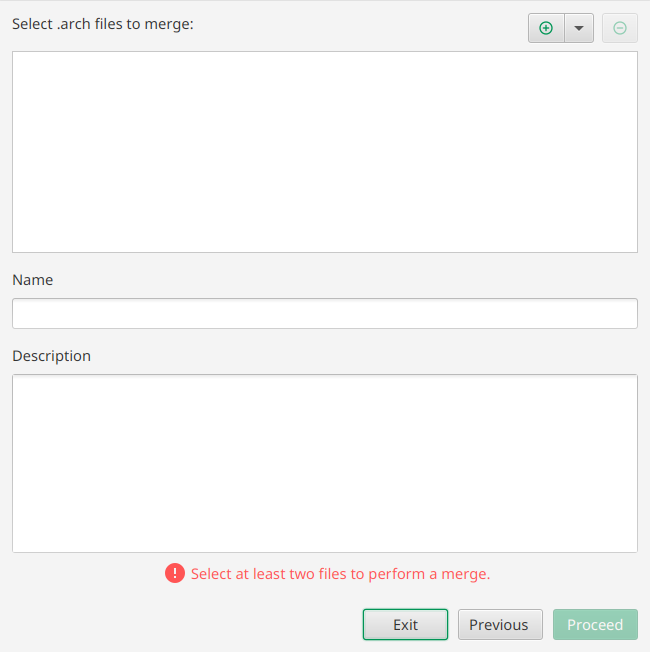
When selecting btn:[Merge…], a new screen appears as shown below.
This screen enables to merge several .arch files that share the same dictionary.
The resulting files is opened in the editor after clicking on the btn:[Proceed].
It is necessary to select at least two .arch files using the  button or the drowdown menu to select from the recent files.
Each time a file is selected, its name and descriptions are added to the corresponding fields to help define them for the result of the merging.
button or the drowdown menu to select from the recent files.
Each time a file is selected, its name and descriptions are added to the corresponding fields to help define them for the result of the merging.
| It is necessary that the selected files share exactly the same dictionary, otherwise the merging will not be possible. |
Once the files are selected, the name and the descriptions are filled, it is possible to obtain the merge of the files by clicking on btn:[Proceed].
Main window
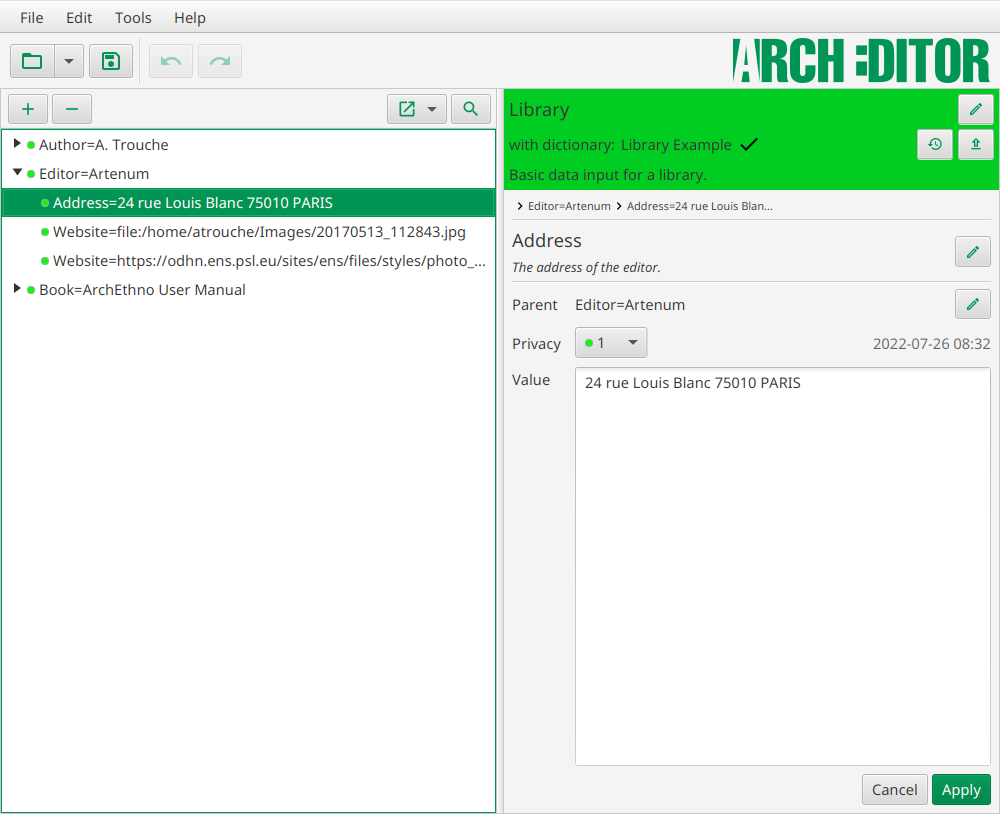
This is the main screen of the application. On the top, general application bars are present:
- Main Menu
-
It corresponds to main control menu of the application.
 Figure 5. Options of the main application menu bar
 - General Toolbar
-
It presents shortcut buttons to open and save a file and also buttons to undo/redo actions performed on the data, see Edit menu section for more information.
 Figure 6. Buttons of the main toolbar
Main menu
File menu
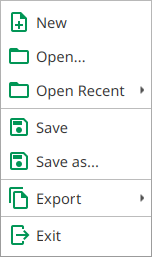
The menu:File[] menu allows opening and saving data files. An option also permits opening recent files. Finally, the exit option enables leaving the application.
Please note that the application can only load one file at a time.
When opening another file, if there are unsaved modifications, the application will propose to save this work before replacing it by the new opened file.
Inside the menu:File[Open recent] menu, at the bottom an option offers the possibility to clear the history of opened files.
The export sub-menu enables to export data files with a filter on privacy level, for example exporting the data of level 1 of privacy.
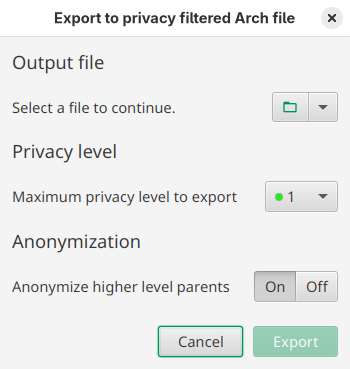
After selecting the output file, it is necessary to select the maximum level of hierarchy that will be kept in the exported file. The last option is here to handle edge-case situation where children have a lower privacy level than the parent and should be exported. If anonymization is activated, the parent will be exported without its value, otherwise the parent and its children will not be exported.
Edit menu

The menu:Edit[] menu enables to undo/redo any action performed on an instance of concept in the main window.File actions such as create new, open or save cannot be undone or redone.
| The undo/redo function can only be used when modifications have been applied to the instance. Thus, it cannot undo/redo modifications not applied inside the Instance editor panel. |
Tools menu
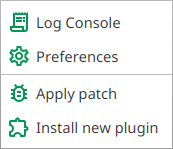
The menu:Tools[] menu offers various tools and shortcuts. From here, you can access the preferences panel presented in the Preferences section. The console log is displaying various messages from the application such as errors and warnings.
With this menu, it is also possible to apply corrective patch to the application or install new feature plugin. To do so, click on the correct item and a file choose will appear and asks where the patch/plugin is located. Once installed, it is recommended to restart the application.